Inside the Agent Development Flywheel (ADF): Running Prompt Experiments

Catching Regressions Before Production with Prompt Experiments and Evals
In traditional software development, we have unit tests to ensure that fixing a bug doesn’t break existing functionality. In Agentic AI, where systems are non-deterministic, we often lack that same safety net.
We’ve all been there, shipping that update to the prompt to handle a new edge case complaint that came in from a customer, and it works. But a few days later, you realize the same update subtly broke the agent’s core functionality for a portion of its users.
This is why the “Experiment & Improve” phase of the Agent Development Flywheel is critical. It allows us to move beyond vibe checks and move to quantifiable evals to prove that a new prompt is less likely to create regressions when we ship it.
In this guide, we’ll walk through our example of an Inventory Management Agent that uses a text-to-SQL tool to convert natural language prompts to SQL. Setting up the agent is not required for this example, but if you’re interested in learning more about how the inventory management agent works or would like to set it up, check out the agent in this GitHub repo here.
This agent was built using Mastra and CopilotKit and is designed to help non-technical users query complex databases using natural language to get information and visual charts about the inventory.
The scenario: The "Postgres-Only" Problem - Our current prompt for the text-to-SQL tool only generates PostgreSQL and works perfectly in the agent. However, our data science team would like it to also support Trino SQL to query the new data lake.
To support this request, in this guide, we’ll set up a basic eval that detects whether the right query has been generated for the correct database and a prompt experiment to catch for regressions before we ship an update to the prompt.
Prerequisites
- Arthur Platform Account: Sign up for a free account at platform.arthur.ai/signup
- Setup Arthur Engine Locally: Walk through the onboarding process after signup and setup the Arthur Engine on your local machine
- Create a Project and a Model: Create a project called “Inventory Management Agent” and create a new model of “Agentic model” type and give it a name.
Step 1: Setup the Tool’s prompt into Arthur
Let’s first set up the tool’s prompt in the Prompt Management feature of the Arthur Engine. The prompt management feature allows you to version control your prompts just like you would for your codebase, so that if there’s a regression with a prompt update, you can instantly rollback the prompt update.
Visit your Arthur GenAI Engine Dashboard (usually at http://localhost:3030/) and click into your newly created agentic model. Once you click into it, go to Prompt Management >> Create Prompt.
Create a new prompt with the following messages
System Message:
You are an expert SQL developer specializing in PostgreSQL.
Your task is to convert natural language queries into valid PostgreSQL statements.

Do not ask the user for clarifications or schema definitions. When in doubt, assume a
schema that would make sense for the user's query. It's more important to return plausible SQL
than to be completely accurate.

Guidelines:
- Always generate valid PostgreSQL syntax
- Use appropriate data types and functions
- Include proper WHERE clauses, JOINs, and aggregations as needed
- Be conservative with assumptions about table/column names
- If the query is ambiguous, make reasonable assumptions and note them
- Always return a valid SQL statement that can be executed

Examples - these queries are examples for how similar questions are answered:
{{ golden_queries }}

Return your response in the following JSON format:
{
  "sqlQuery": "SELECT * FROM table_name WHERE condition;",
  "explanation": "Brief explanation of what this query does"
}
User Message:
{{ investigationTask }}
Now select model type as “gpt-5-mini” and click the “Save” icon on the top right and name the prompt “mastra-agent-text-to-sql”
Step 2: Upload golden datasets to Arthur
Now that our initial prompt is set up, we need a baseline dataset to test against. Golden Datasets are curated examples of inputs and their expected "perfect" outputs.
For this guide, we have prepared two datasets for you in the GitHub repository:
- mixed_sql_dialect_dataset.csv: Contains a mix of PostgreSQL and the new Trino queries we want to support.
Download the CSV file and head back into the Arthur GenAI Engine and go to the “Datasets” tab. Create a new dataset with the same file name and click “Import CSV” > Upload the CSV > (leave all default import options) > Import. Then hit “Save” to ensure your dataset gets saved in the Arthur engine.
Now that we have our golden dataset saved in the Arthur engine, let’s create evaluators to test our prompts.
Step 3: Create the Evaluation
Let’s create an evaluation to be able to check whether the outputted database query is in the right query language for the desired database. For this, head over to Evals Management > New Evaluator.
In here, fill out the details of this new evaluator
Name: Database Query Dialect Detector
Instructions:
Your job is to assess whether the outputted database query is in the right query language for the desired database. Return 1 if the database query is in the desired query language, and 0 otherwise.


Desired Database: {{database}}
Database Query: {{query}}
Model Name: gpt-5-mini
Now hit “Save Eval” and that should create our new evaluator that we can put to the test.
Step 4: Setup Prompt Experiment
Now we’re ready to set up our first prompt experiment to check whether the prompt update we made works perfectly against our golden dataset or if it introduces new regressions.
In the Arthur Engine, go into Prompt Experiments > Create New Prompt Experiment
Select the following options:
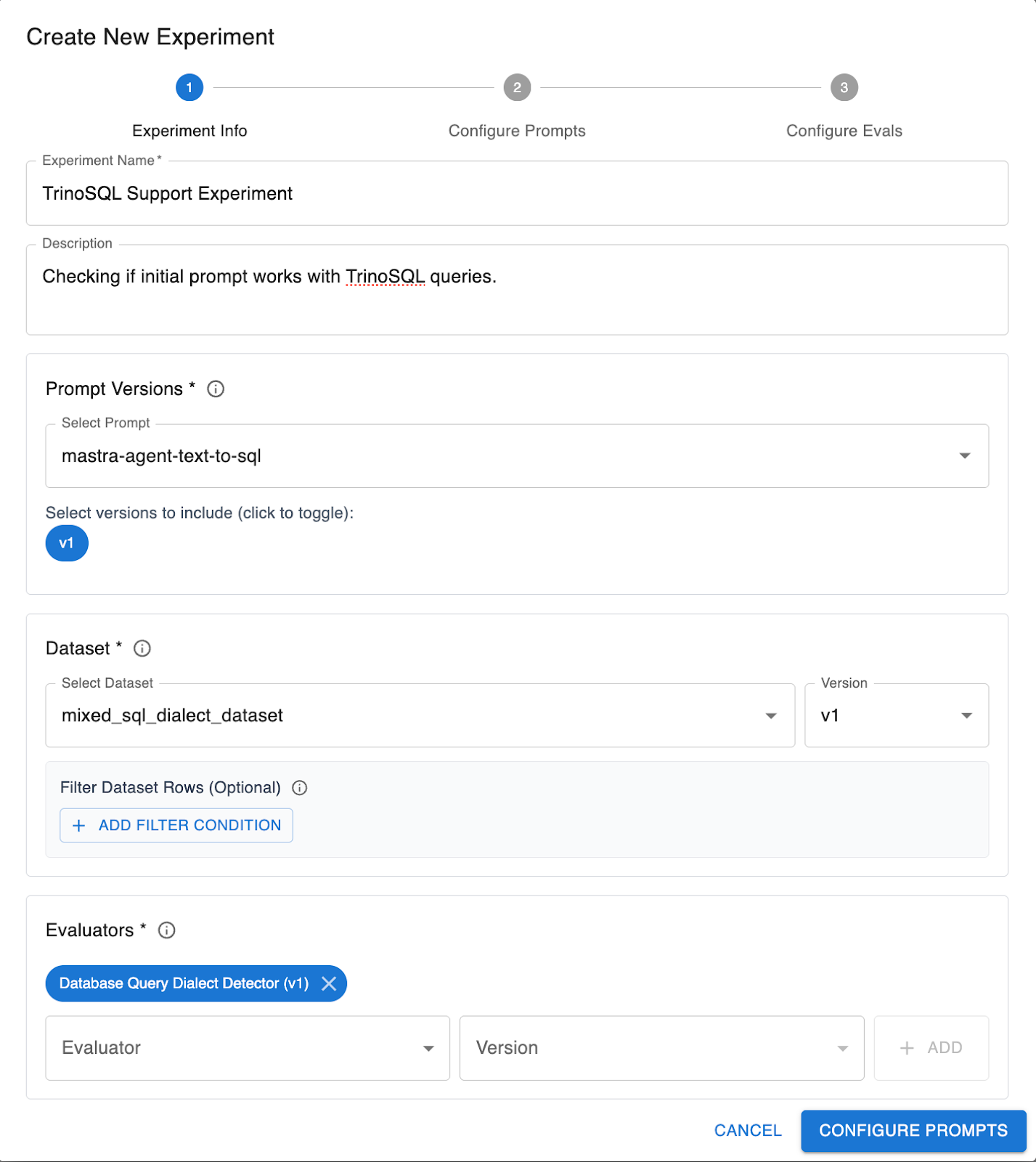
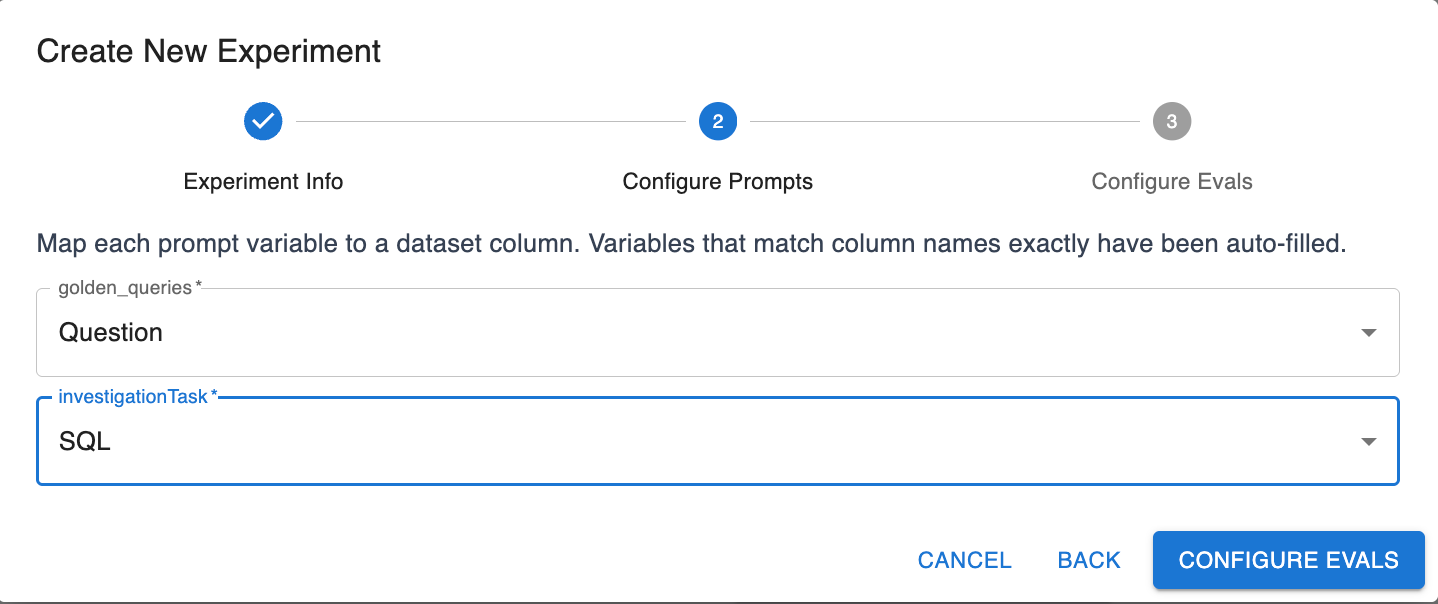
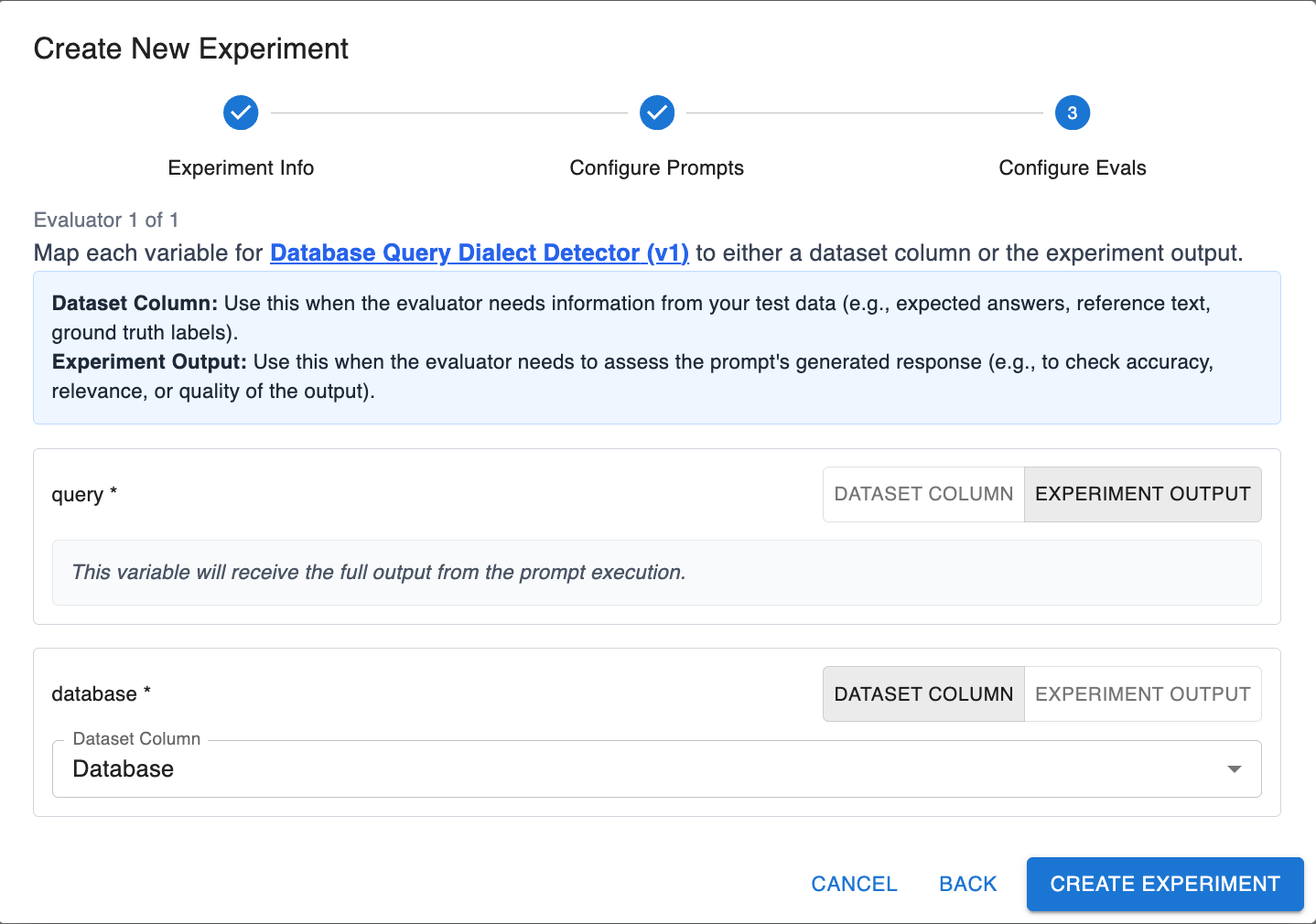
Hit Create Experiments and watch them run.
Experiment Results
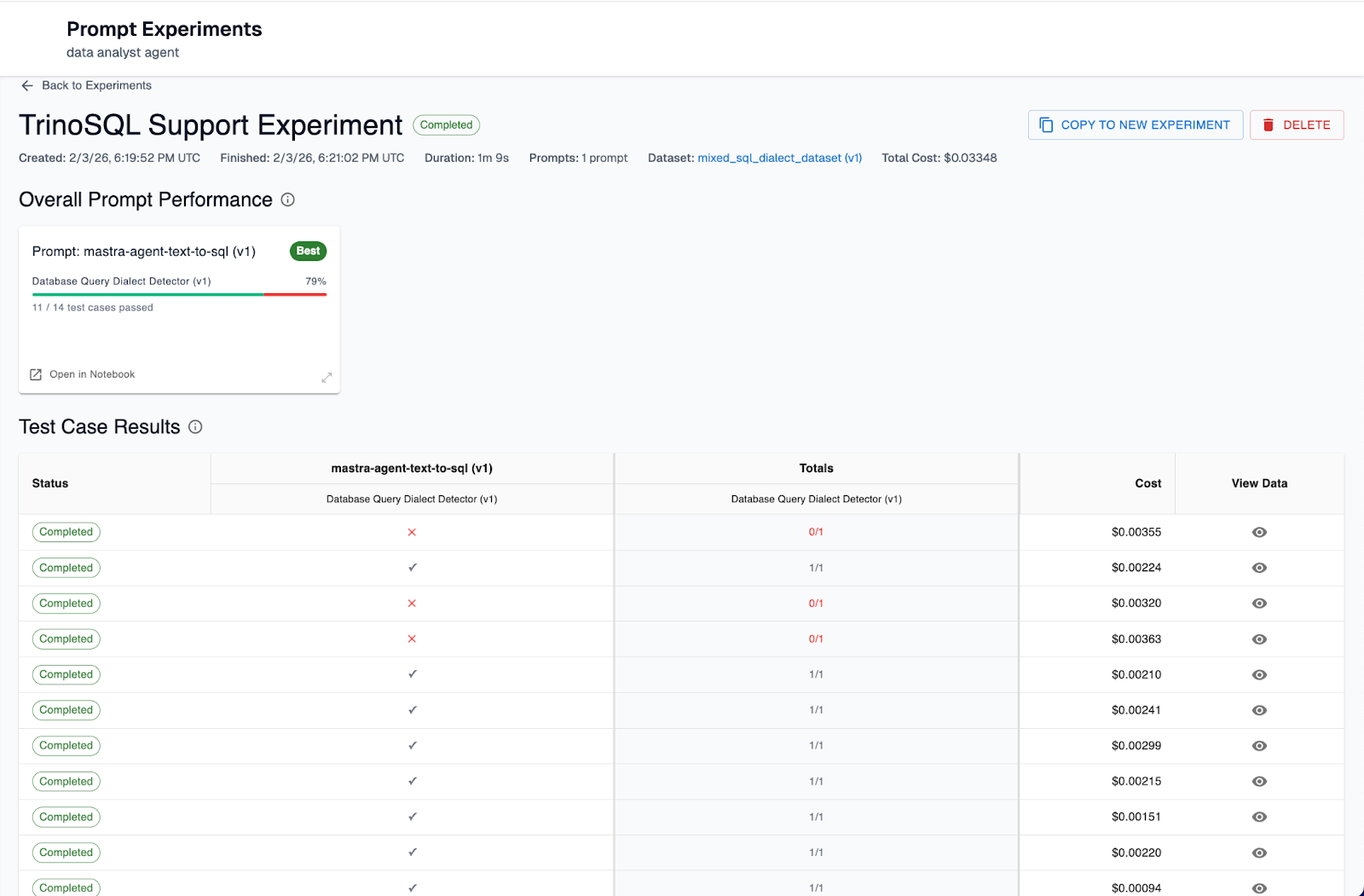
As you can see our experiment failed for three of the test cases. If we look at the inputs of the failed test cases, they are all examples where the database query was in TrinoSQL.
Step 5: Update the Prompt with Templating
Now we fix it. Instead of just changing the word "PostgreSQL" to "SQL" (which risks ambiguous, low-quality query outputs), we will use Prompt Templates.
Arthur supports logic-based templating (with Jinja syntax). This allows us to dynamically swap instructions based on the database we are querying.
Go back to Prompt Management > mastra-agent-text-to-sql > Open in Notebook
Update the system prompt to the following message:
System message:
You are an expert SQL developer specializing in {% if database == 'postgres' %}PostgreSQL{% elif database == 'trino' %}Trino SQL{% else %}SQL{% endif %}.
Your task is to convert natural language queries into valid {% if database == 'postgres' %}PostgreSQL{% elif database == 'trino' %}Trino SQL{% else %}SQL{% endif %} statements.

Do not ask the user for clarifications or schema definitions. When in doubt, assume a
schema that would make sense for the user's query. It's more important to return plausible {% if database == 'postgres' %}PostgreSQL{% elif database == 'trino' %}Trino SQL{% else %}SQL{% endif %} than to be completely accurate.

Guidelines:
- Always generate valid {% if database == 'postgres' %}PostgreSQL{% elif database == 'trino' %}Trino SQL{% else %}SQL{% endif %} syntax
- Use appropriate data types and functions
- Include proper WHERE clauses, JOINs, and aggregations as needed
- Be conservative with assumptions about table/column names
- If the query is ambiguous, make reasonable assumptions and note them
- Always return a valid SQL statement that can be executed

Examples - these queries are examples for how similar questions are answered:
{{ golden_queries }}

Return your response in the following JSON format:
{
  "sqlQuery": "SELECT * FROM table_name WHERE condition;",
  "explanation": "Brief explanation of what this query does"
}
Leave the user message as is. Hit the “Save button” on the top right and let the prompt save with the same name. This will create it as a new version of the same prompt.
Because this prompt utilizes templating, it can dynamically instruct the LLM to generate the appropriate language, TrinoSQL or PostgreSQL, depending on what the user requests.
Let’s run a new prompt experiment to test that this fix is working.
Step 6: Create a Prompt Experiment to Test the Fix
Arthur’s prompt experiment feature allows us to run experiments against different prompt versions to compare how they fare against the evaluators.
We'll now run a new experiment against version 1 and version 2 of the prompt to validate that our templating logic has fixed the TrinoSQL regression.
Go back to Prompt Experiments > Create New Prompt Experiment and in this case we’ll keep all configuration options as our previous experiment, but this time we’ll select both versions of the prompt.
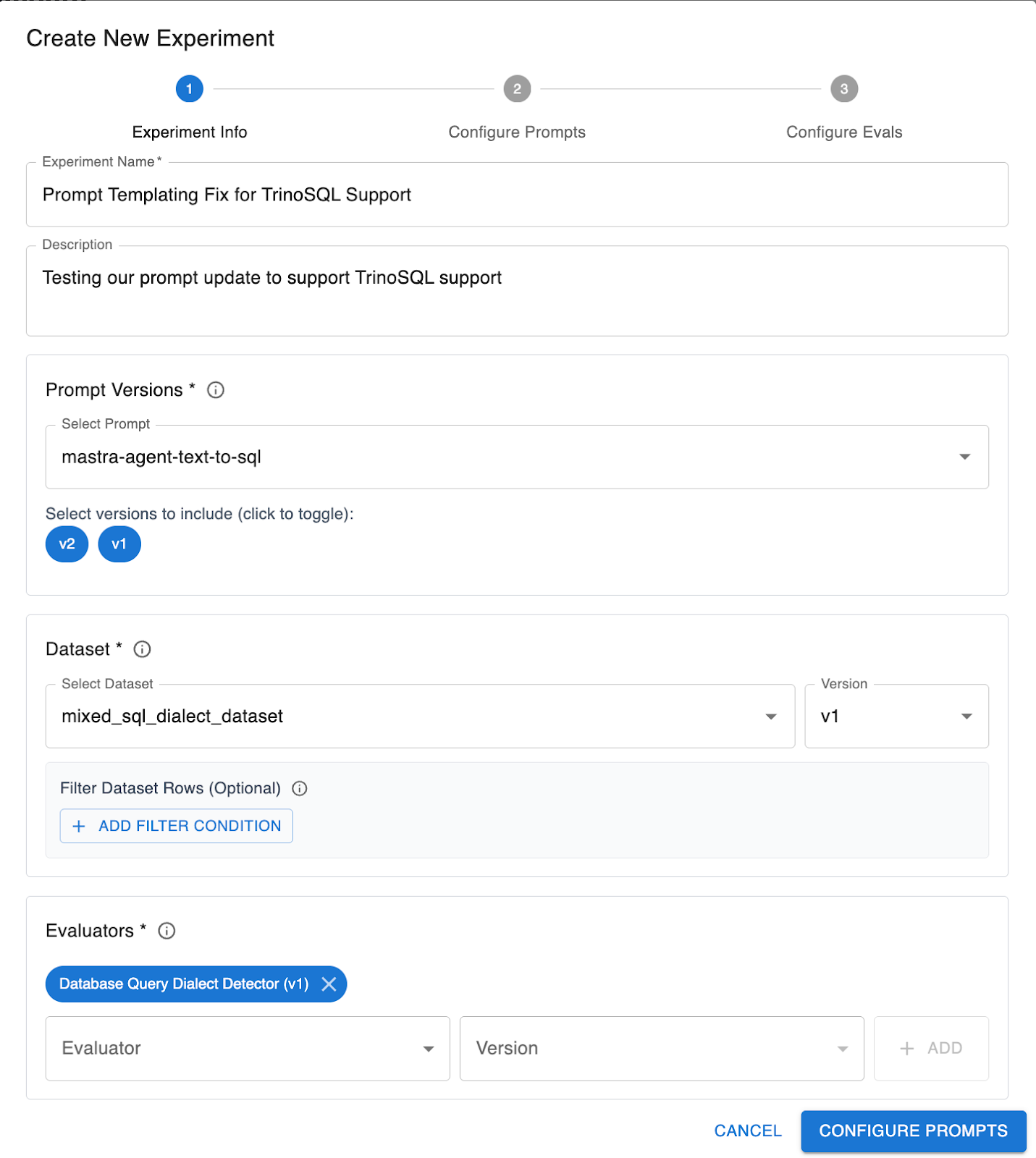
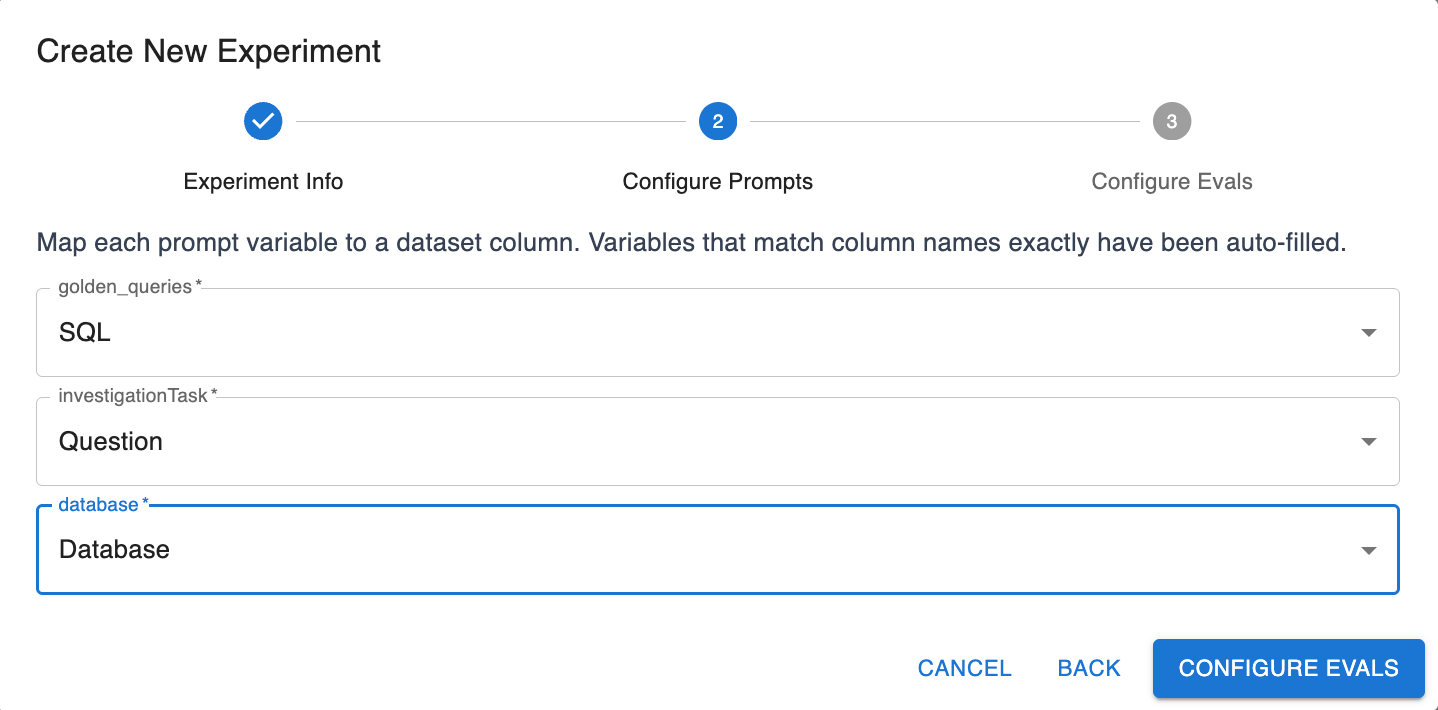
Hit Create Experiments and watch them run.
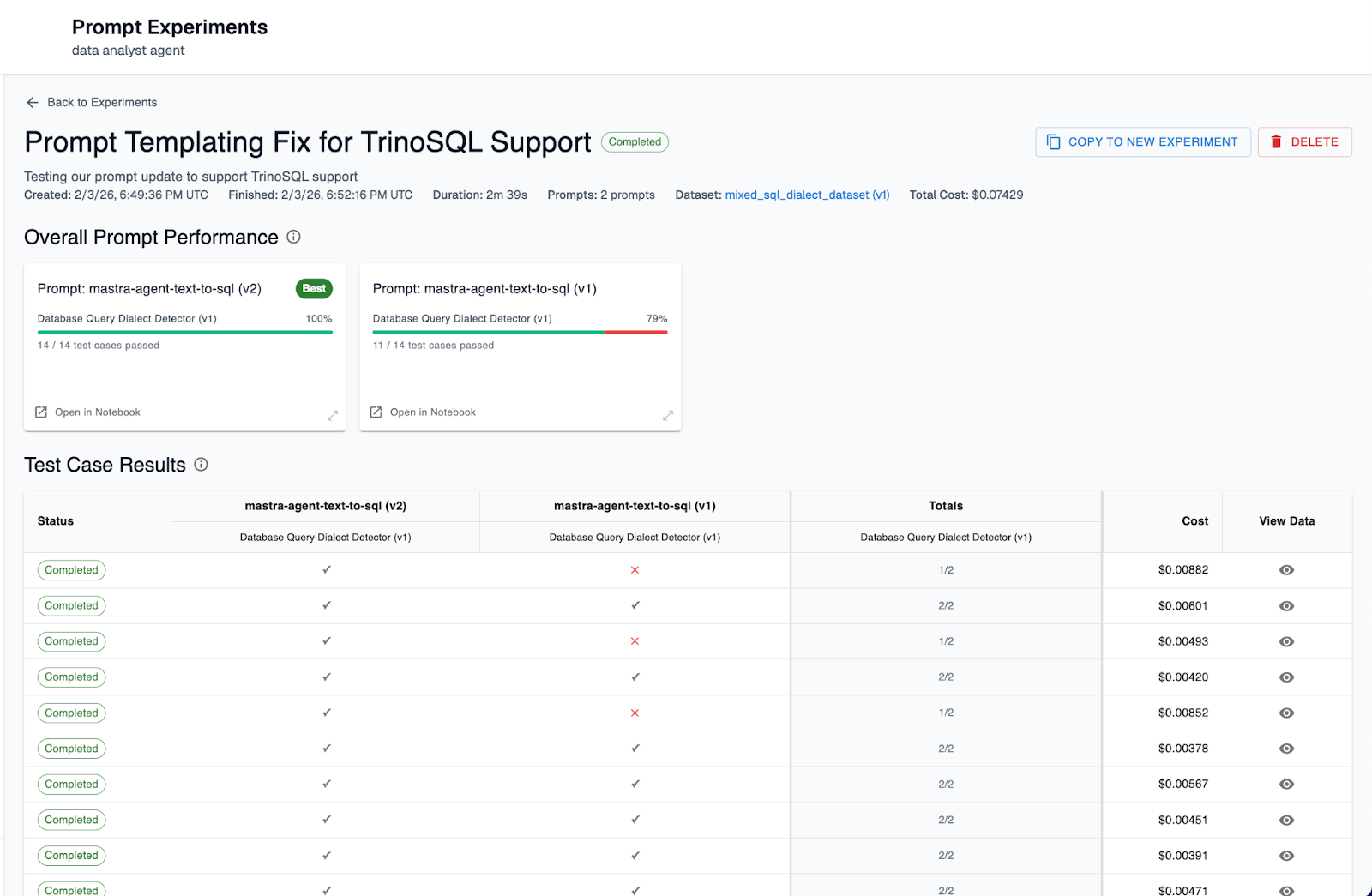
Once the experiment is successfully complete, we should see a result like the following. Our version 1 as expected only showed a 79% success rate on the eval (failing for dataset entries with TrinoSQL queries) and our version 2 of the prompt succeeded with a 100% success rate on the eval.
Real-world Usecase: How Upsolve Caught Regressions
This "Experiment & Improve" workflow is exactly how leading engineering teams are scaling their agentic systems. Upsolve, for example, is a platform that empowers companies to build embedded AI analytics dashboards. Because their core product relies on translating natural language into precise database queries for their customers, reliability is non-negotiable. They couldn't afford for an update to suddenly break a customer's ability to visualize their data, nor could they rely on manual testing to cover every possible SQL dialect their customers might use.
By adopting Arthur’s experimentation framework, Upsolve replaced ad-hoc testing with a rigorous engineering pipeline. Every time they refined their SQL generation prompts or integrated a new model, they automatically ran a suite of "gold standard" test cases in Arthur. This system acted as an immediate safety net, flagging subtle regressions, like a dip in SQL syntax validity for specific database types, that would have otherwise slipped into production. Instead of hoping an update was safe, they had the systematic approach to prove it before a single dashboard was affected.
Conclusion
The Agent Development Flywheel is all about moving your team from guesswork to guarantees. If we had just deployed our generic prompt update to support Trino, we likely would have introduced subtle errors into our core agent behaviour that might not have been caught for weeks. By using Prompt Experiments and Evals, we were able to systematically identify the specific failure modes, engineer a precise fix using prompt templating, and verify the solution without risking a regression going into production.
Ready to start running your own prompt experiments? Get started for free.
SHARE


